Ajax Updates

Ajax Updates


Build Your Own Firefox Extension

Posted: 23 Dec 2009 10:16 AM PST

This is a follow-up article to my recent ebook, Build Your Own Firefox Extension—an extra selection of useful tips, tricks, and hacks that I've collected from my experience with building extensions for Firefox, including CodeBurner, the SitePoint Reference extension. Basic knowledge of how to build a Firefox extension is assumed, so you might like to grab your free copy of the ebook first, if you've yet to do so already.

Most of what's here is not explicitly documented at the Mozilla Developer Center (MDC), either because it's still on their "to do" list, or because I made it up myself. Some of it is well documented, but it's so useful that I thought it was worth directing your attention to it anyway.

The tips are listed in order of complexity, beginning with the shortest and simplest, and moving onto the longer and more complex ideas.

Please note: in many places throughout this article, I'll be creating little methods to package-up self-contained techniques, and in all cases I'll create them as top-level functions (using the function keyword). In practice though, you should create them as methods of your main extension object.
1. Add Icons with list-style-image

Many XUL elements are without support for the CSS background-image property, but many of them do support list-style-image. This includes menuitem, button, and textbox. You could use these for adding your application's icon to its main menu item, or affixing a little magnifying glass icon to a textbox used for searching:

 textbox[type="search"] { list-style-image:url(chrome://myextension/content/images/magglass.png); }  

2. Make tab Elements Keyboard-accessible in Mac OS X

elements are natively inaccessible to the keyboard in Firefox for Mac OS X. To make them accessible you need to manually insert them into the tab order, by adding a tabindex attribute with the value 0. This value is effectively "auto", and places the element at its source-order position in the overall tab order:

<code><tab label="About" tabindex="0"/></code> 

Once that's done you can use the arrow keys to switch between tabs, just the same as in Windows and Linux.

A keyboard-focused tab in Mac OS X

3. Reference the Original Mouse-target of a Context Menu Event

When you click on an item in an XUL context menu, the event target reference is to the menuitem you clicked on. But what if you wanted a reference to the original target element; that is, the element you right-clicked on to spawn the menu in the first place?
This is incredibly simple, as Firefox provides a property that contains this very reference. It's called popupNode and is a property of the document. The easiest way to use it is to pass it through the menu item's command event:

<code><popup id="contentAreaContextMenu"> <menuitem label="This bloke won't haggle" oncommand="offerMeFourteen(document.popupNode)" </code><code> /></code></menuitem></popup></code> 
4. Preventing an Element from Inheriting flex

If you add the flex attribute to most XUL elements, they'll expand to fill the available space. But flex is inherited, so its children will also expand, which in some cases is highly undesirable. For example, if the child element is an image you would want it to have precise dimensions; but there is no way to explicitly negate inherited flex.

But it only inherits one level deep, so you can negate it by adding an intermediate wrapper element, without a declared flex attribute:

<code><hbox flex="1"></hbox></code>  <hbox> <image src="chrome://myextension/content/images/logo.png" width="135" height="130" /> </hbox> 
5. Spawn a Dialog from the Chrome load Event

If you use window.openDialog to spawn a dialog with the modal and centerscreen features from the chrome load event, the dialog will be mostly invisible in Mac OS X, hidden in the top-left corner of the screen. This is because the dialog is positioned before the window's size is established, so the centerscreen property fails to work as expected. The same problem occurs with the alert function, which can be an issue if you're using it as a quick and dirty debugging tool.

One solution is to wrap the openDialog or alert function in a quick setTimeout. This ensures that the main window is sized before the dialog fires, so it will be positioned correctly:

<code>setTimeout(function(){ alert(foo.bar); },1);</code> 
6. Add Custom Dialog Icons for Windows and Linux

To add a custom icon to a dialog, first create a folder named icons inside your extension's chrome directory. Then, inside the icons folder, create another folder called default. Within the default folder, save an icon with the same name as the dialog element's ID.

So, for example, if the dialog had the ID myextension-preferences you would create an icon called myextension-preferences.ico (for Windows, or .png for Linux). The MDC documentation says to use XPM images for Linux, but they lack support for alpha-channel transparency. PNG files do provide support, and they work just as well.

In Windows the icon will also show up in the taskbar:

A custom dialog icon in Windows XP

This differs to Mac OS X, because its dialogs are displayed without icons.

7. Get a Reference to the Most Recently Opened Window

You can use Firefox's window mediator interface to get a reference to the most recently opened browser window. This might be useful if you wanted to open a web link from an external dialog, and is more reliable than window.opener.

Here's a short and sweet little method that returns the window reference, or null if no browser windows are open:

<code>function getRecentWindow() { var wm = Components.classes["@mozilla.org/appshell/window-mediator;1"].getService(Components.interfaces.nsIWindowMediator); var win = wm.getMostRecentWindow("navigator:browser");</code>  return win; } 
8. Get the URL of every Open Tab

Following on from the previous tip, we can iterate through all currently open browser windows, extract their URLs, and package them into a hierarchical array (grouped first by window, then by tab).

The following method does precisely that. Each member of the final matrix is itself an array, containing the tab's URL and a Boolean flag (selected) to indicate if it's the currently selected tab in that window:

<code>function getTabsHeirarchy() { var heirarchy = [], wm = Components.classes["@mozilla.org/appshell/window-mediator;1"].getService(Components.interfaces.nsIWindowMediator), benumerator = wm.getEnumerator('navigator:browser');</code>  while(benumerator.hasMoreElements()) { var browserwin = benumerator.getNext(), tabbrowser = browserwin.getBrowser(), tabs = [];  for(var i=0; i<tabbrowser .browsers.length; i++) { var browser = tabbrowser.getBrowserAtIndex(i); tabs[i] = { 'uri' : browser.currentURI.spec, 'selected' : (tabbrowser.selectedTab == tabbrowser.mTabs[i]) }; }  heirarchy.push(tabs); }  return heirarchy; } 
9. Make Your Interface Respond to Window Focus Changes
Most Mac windows change their appearance when the window loses focus: lighter backgrounds, window decorations, or grayed-out buttons, for example. To implement this effect on your own interface controls you need to know when the window gains and loses focus.

Your first instinct might be to use the window focus and blur events, but it turns out they're unreliable for this purpose, since they sometimes behave unintuitively. For example, if the application focus moves to a document in an embedded browser, the main window blur event will fire, even though the window is still the focused one. This is because the window element itself no longer has the application focus. Although this behavior is logical, it may also be unexpected. The good news is that Firefox's main interface window has an active attribute that changes from true to "" (an empty string) when the window genuinely loses focus. You can watch this attribute with a DOM mutation event listener, and use it as the trigger for whatever you need to do:

  <code>window.addEventListener('DOMAttrModified', function(e) { if(e.attrName == 'active') { if(e.newValue == 'true') { //window has gained the focus } else { //window has lost the focus } } }, false);

Be careful how you use this. For example, if you used it to trigger a modal dialog such as alert, the action of spawning the dialog would cause the window to lose focus; dismissing it would regain the focus, which would re-trigger the dialog!

Alternatively, if the effect you want to achieve can be achieved with pure CSS, you can use an attribute selector along with the negation pseudo-class. For instance, to switch an icon between its normal and disabled states:

<code>window[active="true"] #main-icon { list-style-image:url(chrome://myextension/content/images/main-icon.png); }</code>  window:not([active="true"]) #main-icon { list-style-image:url(chrome://myextension/content/images/main-icon-disabled.png); } 
10. Implement Platform-specific Style Sheets

Firefox is available on multiple platforms, and each of these has its own conventions with regard to the appearance and even the placement of interface components. A good example of this is the OK and Cancel buttons in an alert dialog: on Windows and Linux the OK button is to the left of the Cancel button, while on Mac OS it's the other way round. The appearance of the close and minimize window buttons is another instance, as they differ for each platform.

So given these variations, it's often useful to be able to apply platform-specific style sheets to your own extension's interface. This enables you to implement variations like alternate icons for buttons, different fonts for custom interface controls, and so on.

Fortunately, Firefox provides a simple mechanism for doing this, using a special folder hierarchy and a set of manifest files.

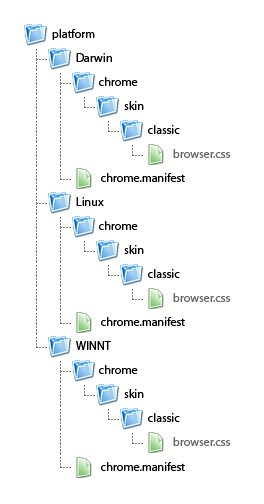
First of all you need to create the folder hierarchy. The top-level platform folder in the following diagram should go inside your extension's root folder—at the same level as the chrome folder. All the folder names and filenames must be exactly as shown here (they are also case-sensitive), except for the name of the style sheet itself; this can be anything you like, but of course it must be the same for each platform's copy.

The folder hierarchy for platform-specific style sheets

Just in case it was less than obvious, "Darwin" is Mac OS X, "WINNT" is Windows, and "Linux" is … er … Linux. Each of those chrome.manifest files should contain this identical tab-delimited line (replacing "myextension" with the name of your extension):

<code>skin  myextension  classic/1.0  chrome/skin/classic/</code> 

To add the style sheets to your interface, simply add an xml-stylesheet processing instruction with the following URL pattern:

 <code>< ?xml-stylesheet href="chrome://myextension/skin/browser.css"?></code>

See how all you need to do is refer to the skin directory, and Firefox will work out which specific style sheet to include, according to the platform it's running on. You can extend the principle with as many different style sheets as you want: just create a version in each of the platform folders, and then add it to an XUL document using the same URL pattern.

11. Add a URL to the Browser's History

Here's an extra bonus tip. The XUL Reference at MDC tells you how to create a textbox with history auto-complete. Unfortunately, it fails to tell you how to add new URLs to the history, so I had to work this out the hard way, by trawling through Firefox's source code. The method I'm going to show you here adds URLs, retrieves and saves favicons, and includes the basic history auto-complete into the bargain!

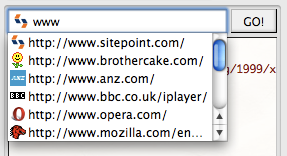
A textbox with a history auto-complete menu, showing entries we added programmatically

Note: adding to the browser's history will work in Firefox 3 or later, but retrieving the favicon will only work in version 3.5 or later.

So, to begin with we need a textbox with the necessary attributes. In the following code example, the function name addURLToHistory can be anything you want, and the flex attribute is optional, but everything else must be exactly as shown:

<code><textbox flex="1" newlines="stripsurroundingwhitespace" type="autocomplete" autocompletesearch="history" completeselectedindex="true" onkeydown="if(event.keyCode == KeyEvent.DOM_VK_RETURN) { addURLToHistory(this); }" /></code> 

The type and autocompletesearch attributes are what trigger the primary auto-complete behavior. The completeselectedindex attribute is so that when you select an item from the auto-complete menu, its value is automatically written into the textbox; this allows you to press the Enter key straight away to fire the command function. The newlines attribute is simply so that we can avoid manually parsing the value of unwanted whitespace (such as leading or trailing spaces).

Note how the command function is triggered by onkeydown, rather than oncommand. That's because the <textbox> element lacks an oncommand event. The events that are normally used for it are oninput (fired when displayable text is entered) and onchange (fired when the value changes). Because the value will be frequently changing in response to auto-complete suggestions, most of which will be unwanted values, we're deferring the command action until the Enter key is pressed.

What we have here is already enough for a functional auto-completing history box. You can type or paste text into the textbox and a drop-down menu will appear with your history, filtered according to what's been entered. You can then select from that menu, and your selection will be written into the textbox.

You could also add an arrow button to make the drop-down menu appear by adding enablehistory="true".

So now let's look at the command function that's fired when you press Enter. In practice you would go on to perform another task after this, (such as loading the specified URL into a browser) but I'm just going to focus on how to add it to the history. I'll show you the code first, and then go through it bit by bit:


<code>function addURLToHistory(textbox) { var url = textbox.value;</code>  if(!/^(((ht|f)tp[s]?)\:)/i.test(url)) { url = 'http://' + url; } textbox.value = url;  if(url.indexOf(' ') != -1 || url.split('?')[0].indexOf('..') != -1) { alert('Malformed URL'); return; }  var ioService = Components.classes["@mozilla.org/network/io-service;1"].getService(Components.interfaces.nsIIOService); var nsIURI = ioService.newURI(url, null, null);  var historyService2 = Components.classes["@mozilla.org/browser/nav-history-service;1"].getService(Components.interfaces.nsIGlobalHistory2); historyService2.addURI(nsIURI, false, true, null);  try { var faviconService = Components.classes["@mozilla.org/browser/favicon-service;1"].getService(Components.interfaces.nsIFaviconService); var faviconURI = ioService.newURI('http://' + nsIURI.host + '/favicon.ico', null, null); faviconService.setAndLoadFaviconForPage(nsIURI, faviconURI, false); } catch(err) {} }

First and foremost we do a little validation, adding a protocol if the URL is without one (so that the user can just type "www."), then writing the [modified] URL back to the textbox. Then, if it contains any spaces or multiple dots other than in CGI parameters, we throw an alert over the malformed syntax and exit the function. This is all the validation we really need to stop Firefox from choking. You may prefer to handle the error more gracefully, for example by throwing the error to the console or implementing a custom method to alert the user that an error has occurred.

Next, we do the business that actually adds the URL to the history. The history service won't accept a plain URI string, so we need to create what's called an IURI. This is a URI object that contains a variety of metadata, including its host, which will come in handy later. We create the IURI object using the IO service, and then pass that to the global history service, to add it to the browser's history.

The rest of the code is for grabbing the favicon, and this is wrapped in a try ... catch block for two reasons. Firstly, so that an error is not thrown if, for any reason, the favicon fails to be at the expected URL, and secondly, because it only works in Firefox 3.5 or later. So, we first initialize the favicon service, and then create an IURI object for the favicon's address (using the host name from the original IURI). We then pass the favicon IURI object to the favicon service, to load and save the favicon.

And there we have it! Next time we type that same address into the textbox, it will show up in the auto-complete menu, along with its favicon.

Note that the favicon process is asynchronous. If you want to display it in the textbox straight away, you need to run a setInterval loop to continually check whether it exists yet. You can do that with code like this:

<code>var count = 0, faviconclock = window.setInterval(function() { var fsURI = faviconService.getFaviconImageForPage(nsIURI); if(++count == 20 || /moz\-anno:favicon:/.test(fsURI.spec)) { window.clearInterval(faviconclock); textbox.setAttribute('style', 'list-style-image:url(' + fsURI.spec + ')'); } }, 500);

This code is a little tricky: every 500 milliseconds (the second parameter to setInterval), we ask the favicon service for the page's favicon. It will return a URI formatted either with the moz-anno:favicon: protocol (if the favicon has been downloaded) or with the chrome: protocol (if it's returning the default image). If we've tried 20 times (a total of 10 seconds),

Source:http://articles.sitepoint.com/article/ten-tips-firefox-extensions/2

Related Listings:

  1. FireCrystal – Firefox extension for designers and programmers FireCrystal is a Firefox extension that helps designers and programmers...
  2. Build an Elastic Textarea with Ext JS Since it was first featured on Facebook, elastic textareas –...
  3. Flip – Free jQuery Plugin Flip is a plugin for jquery that will flip your...

Two Style Sheets

Posted: 23 Dec 2009 09:47 AM PST

CSS and Netscape 4.xx Issues
Netscape 4.xx is now more than 4 years old and has been developed when CSS was in the planning stages, and it shows! That means that NN 4.xx does not correctly interpret or render many simple CSS styles. Internet Explorer, on the other hand, has been consistently upgraded over that time. This means that many of the styles that Netscape 4.xx does not support will be supported in IE. One way to have a site styled the way you want it and keep NN 4.xx happy is to use external style sheets, with a trick which will be explained soon.

The syntax for linking an external style sheet is:

  <link rel="stylesheet" href="Style.css" type="text/css"> 

It makes sense to use two different external styles – one for IE and NN6, the other one for NN4.xx. In doing so, you could adapt your font sizes, or background properties, or the other styles that NN4.xx has problems with.

To do that you can use the fact that NN 4.xx does not recognize the @import.
Therefore you link two style sheets:

 </link><link rel="stylesheet" href="StyleNN.css" type="text/css"> <style type="text/css"> @import url(Style.css); /*IE and NN6x styles*/ </style>  

Explanation: NN4.xx does not recognize the @import, so it uses the style sheet. IE and NN6 merge both stylesheets, but by placing the @import sheet after the style, you give it more importance, therefore IE and NN6 will give you the styles in the @import.


Source: http://www.mako4css.com/csstwo.htm#oben

Related Listings:

  1. Javascript Style Sheets JSS stands for Javascript Style Sheets, it is a jQuery...
  2. Tables with Style CSS It might not seem like it but styling tabular data...
  3. Form With Style – Ajax Script Forms are not very friendly when it comes to CSS...

Style Web Forms Using CSS

Posted: 23 Dec 2009 09:41 AM PST

Whether your main business is Web design or backend development, chances are you spend a fair amount of time creating forms for user input. So you already know that the default appearance of forms isn’t always appropriate for the look and feel of your site.

In this article we’ll look at how you can use CSS to create attractive and usable forms.
Styling Form Elements

It’s possible to change the default look of form elements by styling their html tags: input, select and textarea.

The input Tag

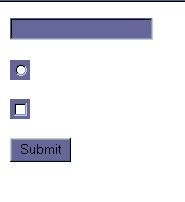
Defining rules for the input tag will change any instance of that tag in your document. For example, if I wish all elements to have a purple background, I could define the following in my style sheet.

  input { background-color: #666699; } 

This will add a purple background color to those elements that are marked up using the input tag
1166_image1
The select Tag

The select tag creates a list menu. You can create rules for select which will affect any list menus in your document.

  select { background-color: #666699; color: #ffffff; } 

1166_image2

The textarea Tag

The textarea tag marks up multiple line text input fields. Once again, setting rules for textarea will change the look of all of these elements in your document.

textarea { background-color: #666699; color: #ffffff; }

1166_image3

The form Tag

You can also style the form tag itself, adding borders, background colors and adjusting the margins and padding. Form is a block level element, so you can change the way it displays in much the same way that you would style a paragraph.

 form { border: 1px solid #666699; padding: 5px; }

1166_image4
Creating Classes for Form Elements

Simply defining rules for your elements has some obvious problems. You probably don’t want those funny boxes around your checkboxes and radiobuttons; you may also want to create a different appearance for text input boxes and buttons. Perhaps you’d like to have several different form styles available in your style sheet, each serving a different purpose.

To do this, you can create classes and apply them to individual form elements. For example, this class in the style sheet:

.texta { font-size: 10px; background-color: #CCCCCC; border: 1px solid #666666; 

can be applied to a form element like so:<…………. >

input class="texta" name=" type=" 

Any other form elements or input tags in the document will remain unstyled, as this class is not applied to them.

1166_image5

When I begin work on a site that’s going to involve a lot of forms, one of the first things I do is create classes for my standard forms in the style sheet. It doesn’t matter if the style needs to change at a later date — that simply involves tweaking the values in the style sheet. The important thing is that classes are applied from the outset, so that any changes affect all forms on the site.
Putting It Together

To conclude this article here are a couple of typical forms — for login and user registration — that show how we can use CSS to turn forms into an attractive interface feature.
Styling a Login Form

The first form we’ll look at is a login form. You might find a form like this on a site that requires the user to sign in, in order to access more features (e.g. an online bulletin board).

The HTML looks like this:

 < ...........................> form id="login" action="#" method="post"> < ....> label Username: < ...........................> input name="user" type="text" tabindex="1" / < .......> /label  < .....> label Password: < ..........> input name="password" type="password" tabindex="2" < ....................../> input name="Submit" type="submit" value="Submit" tabindex="3" < .......> /label < .......> /form

Without any styling, the form looks like this:

1166_image6

First, we’ll style the form tag itself. In an attached style sheet add the following CSS:

 <code>form#login { background-color: #CCCCCC; color: #000000; border: 1px solid #999999; font-family: Verdana, Arial, Helvetica, sans-serif; font-size: 10px; text-align: right; }</code>

We only want the form with the id of #login to be styled, and the rules we’ve defined give this kind of form a background color, a default text color, and a border. We’ve set the font family and size of the text within the form, and right-aligned the form’s contents.

1166_image7

The input fields for a login form often need only be small, as the input is simply a short username and password. We can set the width of the text input boxes using CSS. To do this, I’ve created a class called '#login .text’.

<code>#login .text { font-family: Verdana, Arial, Helvetica, sans-serif; font-size: 11px; width: 100px; margin-right: 6px;</code> } 

I’ve also added a margin-right setting, to insert a little space between the end of the input box and the start of the next label.

To make these changes affect the form, we need to add the class name to our username and password fields.


<code><input name="user" type="text" id="user" tabindex="1"  /> <input name="password" type="password" id="password" tabindex="2" /></code>

1166_image8

The final step with this form is to style the submit button, which is looking a bit large and clunky at the end of the form right now. So we’ll create another class, this time for a button within the #login form.

   <code>#login .buttons { font-family: Verdana, Arial, Helvetica, sans-serif; font-size: 10px; background-color: #333333; color: #FFFFFF; margin-right: 6px; }</code>

Apply this class to your submit button to see the completed login form.

 <code><input name="Submit" type="submit" tabindex="3" value="Submit" /></code> 

1166_image9

I have created this form without using tables for the layout, however, all the techniques we’ve discussed could be applied to a form that’s within a table. The next example will look at styling within tables.
A Registration Form

<code><form name="signup" id="signup" method="post" action="#"> <table> <tr> <td colspan="2"><label for="name">Name</label></td> <td colspan="2"> <input type="text" name="name" id="name" tabindex="1" /></td> </tr> <tr> <td colspan="2"><label for="address1">Address Line 1</label></td> <td colspan="2"> <input type="text" name="address1" id="address2" tabindex="2" /></td> </tr> <tr> <td colspan="2"><label for="address2">Address Line 2</label></td> <td colspan="2"> <input type="text" name="address2" id="address2" tabindex="3" /></td> </tr> <tr> <td colspan="2"><label for="city">City</label></td> <td colspan="2"> <input type="text" name="city" id="city" tabindex="4" /></td> </tr> <tr> <td><label for="state">State</label></td> <td><select name="state" id="state" tabindex="5"> <option value="">-- Select ---</option> <option value="AL" >Alabama</option> <option value="AK" >Alaska</option> </select></td> <td><label for="zip">Zip</label></td> <td> <input type="text" name="zip" id="zip" tabindex="6" /></td> </tr> <tr> <td colspan="2"><label for="email">Email Address</label></td> <td colspan="2"><input type="text" name="email" id="email" tabindex="7" /></td> </tr> <tr> <td colspan="4"><input type="submit" name="Submit" value="Submit" tabindex="8" /></td> </tr> </table> </form></code>

Here it is in the browser.

1166_image10

This form is laid out using a table. To keep the table mark-up down to a minimum, we can use CSS to style both the table and the form. First, to style the table, add the following to your style sheet:

<code>#signup table { background-color: #F9FBFD; color: #000000; width: 440px; border: 1px solid #D7E5F2; border-collapse: collapse; }</code>  #signup td { border: 1px solid #D7E5F2; padding-left: 4px; }

The code dictates that these rules apply to any table and td that appears within an area with an id of 'signup’. As such, these rules won’t affect the look of any other tables on your site.

Most of this should look fairly familiar by now, however, note the line:

<code>border-collapse: collapse;</code>

This collapses the borders, so that space doesn’t appear between each cell in the table. To demonstrate the effect of this code, here’s how the form appears when the border-collapse line is removed from the CSS.
1166_image11

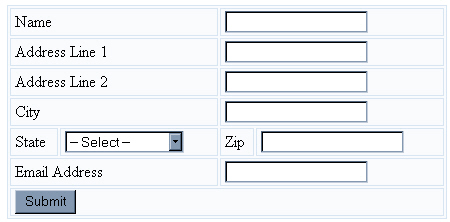
Here’s the form again, this time with the border-collapse line included in the CSS file:

1166_image12

There are two types of cells in the form: those that contain labels, and those that contain form fields. Differentiating between these cell types can make the form less cluttered and easier to scan — particularly if it’s lengthy.

Create two classes in your style sheet – '.labelcell‘ and '.fieldcell‘.

Add the class 'labelcell‘ to every td that contains a label, and 'fieldcell‘ to every cell that contains a form field.

<code><tr> <td colspan="2"><label for="name">Name</label></td> <td colspan="2"> <input type="text" name="name" id="name" tabindex="1" /> </td> </tr></code>

I’ve also created special classes for the smaller cells (in my form, these contain the select menu for state, and the zip code field). I’ve named these '.smalllabelcell‘ and '.smallfieldcell‘, which allows us to treat these cells separately.

In your style sheet, add the following:

<code>.labelcell { font: 11px Verdana, Geneva, Arial, Helvetica, sans-serif; color: #3670A7; background-color: transparent; width: 220px; }  .fieldcell { background-color: #F2F7FB; color: #000000; text-align: right; margin-right: 0px; padding-right: 0px; }  .smalllabelcell { font: 11px Verdana, Geneva, Arial, Helvetica, sans-serif; background-color: transparent; color: #3670A7; width: 100px; }  .smallfieldcell { background-color: #F2F7FB; color: #000000; text-align: right;  }</code>

You should end up with something that looks like this.

1166_image13

You can now style the form fields within these cells. As we’ve already applied a class to the td, we can simply choose to style all input tags within the td to which that class is applied. Add the following to the style sheet:

<code>.fieldcell input { width: 200px; font: 11px Verdana, Geneva, Arial, Helvetica, sans-serif; background-color: #D7E5F2; color: #102132; border: 1px solid #284279; margin-right: 0px; }  .smallfieldcell input { width: 100px; font: 11px Verdana, Geneva, Arial, Helvetica, sans-serif; background-color: #D7E5F2; color: #102132; border: 1px solid #284279; }  .smallfieldcell select { font: 11px Verdana, Geneva, Arial, Helvetica, sans-serif; background-color: #D7E5F2; color: #102132; border: 1px solid #284279; }</code>

Adding a special class for our submit button finishes the job.

<code>.button { font: 11px Verdana, Geneva, Arial, Helvetica, sans-serif; background-color: #D7E5F2; color: #102132; margin-left: 12px; margin-top: 3px; margin-bottom: 2px; }</code>

1166_image15

In this article, we’ve explored some of the ways in which you can use CSS to change the look and feel of html forms. We now know how to:

  • Style the html elements, including form, input, select and textarea
  • Create classes for form elements
  • Use a combination of the above to create two very different forms

These techniques should work well in modern, relatively standards-compliant browsers. However, note that the rendering of form fields styled with CSS is one of the places where Netscape 4.* can behave strangely.

If you make extensive use of CSS in your forms, you may wish to attach a separate 'form styles’ style sheet using the @import method. This will enable you to hide from Netscape 4 styles that will cause it problems.
If you make extensive use of CSS in your forms, you may wish to attach a separate 'form styles’ style sheet using the @import method. This will enable you to hide from Netscape 4 styles that will cause it problems. To read more about the @import method, see
two-style-sheets

Source:http://articles.sitepoint.com/article/style-web-forms-css/4

Related Listings:

  1. Form Style This form is available for you to create your own...
  2. Form With Style – Ajax Script Forms are not very friendly when it comes to CSS...
  3. Building a better web forms : Context highlighting using jQuery In my previous article “Labels in form layouts” I wrote...

0 comments:

Post a Comment

Note: Only a member of this blog may post a comment.